
State transitions allow your wallpaper to change appearance based on your device’s state (locked, unlocked, or sleep), creating dynamic and interactive wallpapers.Documentation Index
Fetch the complete documentation index at: https://docs.enkei64.xyz/llms.txt
Use this file to discover all available pages before exploring further.
What Are State Transitions?
State transitions define how your wallpaper looks in different device states:- Base State: The default appearance
- Locked: How the wallpaper looks when your device is locked, on the lock screen
- Unlock: How the wallpaper looks when you device is unlocked, on the home screen
- Sleep: How the wallpaper looks when the device is asleep/off
State transitions are automatic! You just define how layers look in each state.
How State Transitions Work
The Base State
The Base State is your starting point:- This is the default state. The locked, unlock, and sleeep state will look the exact same until they are modified.
Other States
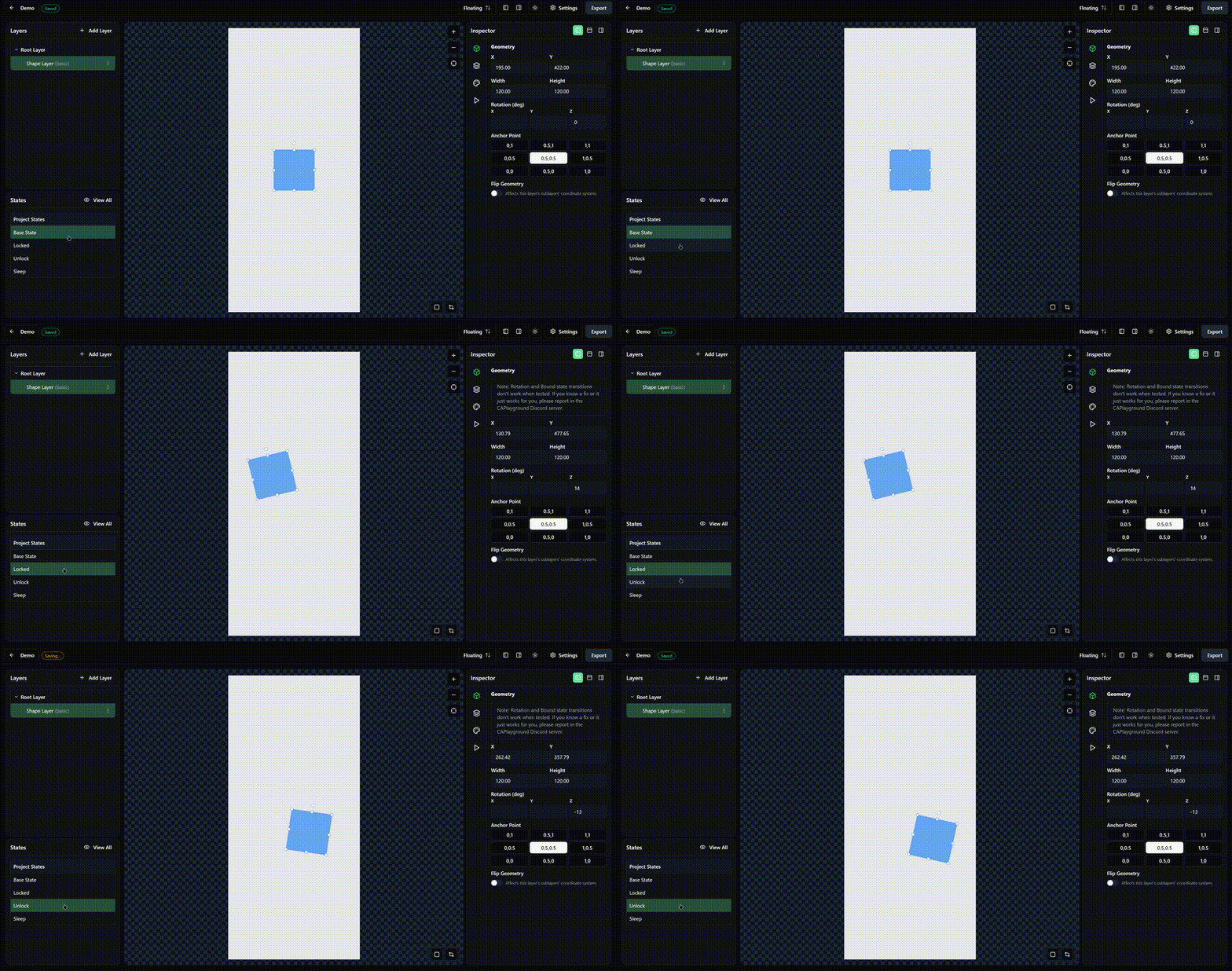
Once you have layers in the Base State, you can modify them in other states:- Select a state (Locked, Unlock, or Sleep) from the States Panel
- The canvas shows how your wallpaper will look in that state
- Modify layer properties (position, opacity, rotation, etc.)
- Changes are saved automatically for that state
- Position (X, Y)
- Bounds (W, H)
- Rotation (X, Y, Z)
- Opacity
- Create or edit animations
- Unsupported properties (they are greyed out/disabled)
Creating State Transitions
Step 1: Set Up Your Base State
- Make sure you’re in the Base State (check the States Panel)
- Create all the layers you want in your wallpaper
- Position and style them as they should appear when unlocked
- Add any animations you want (animations only work in Base State)
Step 2: Define the Locked State
- In the States Panel (bottom left), click Locked
- The canvas now shows the Locked state
- Select a layer you want to modify
-
Change its properties in the Inspector:
- Move it to a different position
- Change its opacity
- Rotate it
- Resize it
- Repeat for other layers if you want them to also have a different look on the Locked state.
Step 3: Define Other States (Optional)
Unlock State:- How the wallpaper looks when you are on your home screen (phone is unlocked)
- How the wallpaper looks when your phone is asleep/off.
Step 4: Test Transitions
- Switch between states in the States Panel
- Watch how the canvas shows the transitions smoothly
- Adjust properties until you’re happy with the transitions
Troubleshooting
”Transitions are too fast/slow”
Changing the state transition timing is not supported yet.”Some properties aren’t transitioning”
Solutions:- Make sure the property is supported for transitions
- Check that the values are actually different between states
”Animations don’t work in Locked state”
Animations are only created and edited in the Base State. They will play in all states, but you can’t create new animations in other states. They also sometimes do not show on iOS properly and I have no idea why.Demo
Next Steps
Creating Animations
Add animations to your Base State
Editing Layers
Master layer properties for transitions
Export Your Project
Test state transitions on your device
Your First Wallpaper
Follow a complete tutorial